Markers on the words
Render, transcribe and lay a colour-coded marker on every phrase or word, at the frame it is spoken. Timing is checked against the audio itself, not just the transcript.
Markers on the words
Render, transcribe and lay a colour-coded marker on every phrase or word, at the frame it is spoken. Timing is checked against the audio itself, not just the transcript.
A transcript you can drive
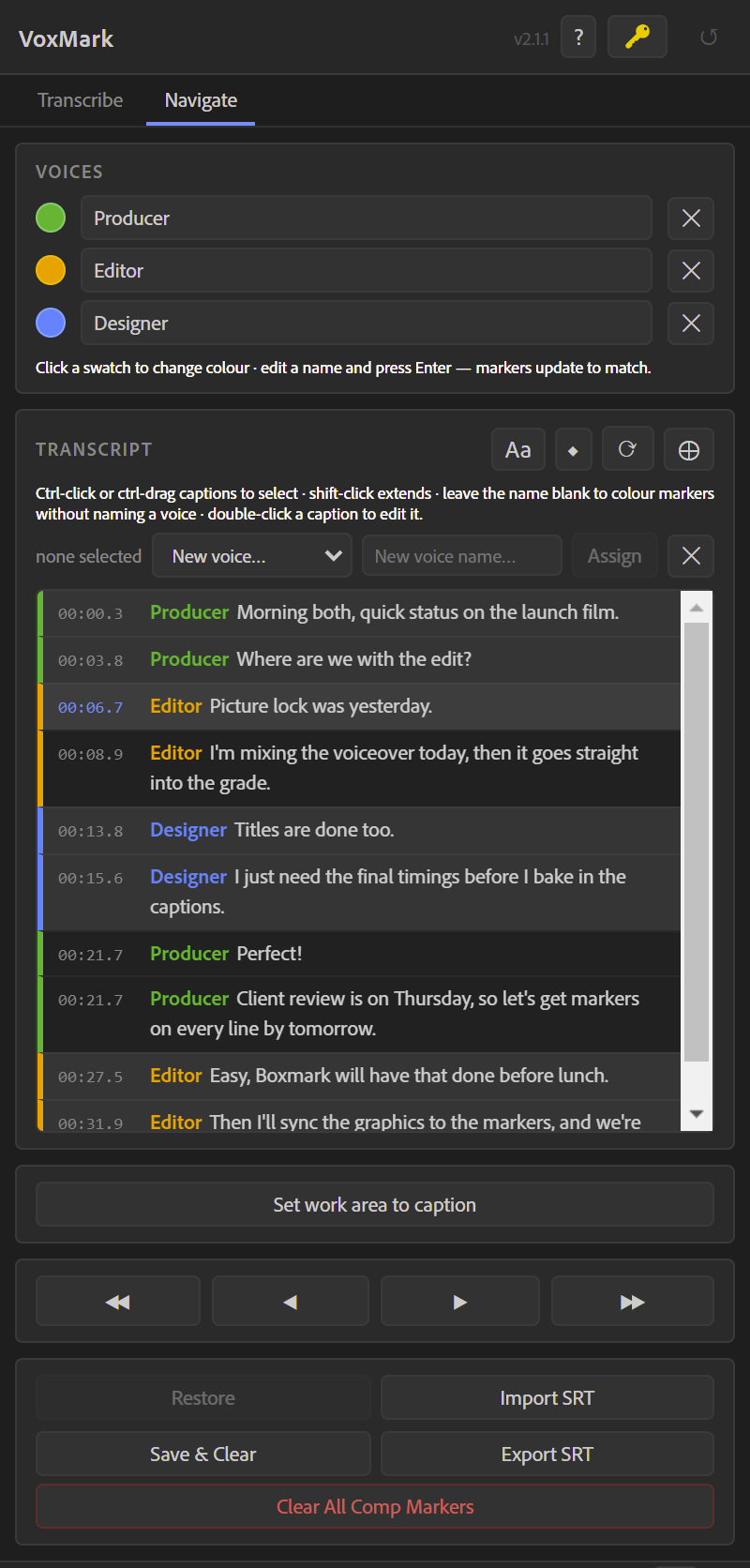
The Navigate tab is your whole voiceover as clickable captions. Click to jump, double-click to fix a word — the marker follows.
Every voice its own colour
AssemblyAI tells speakers apart automatically; with any provider you can assign voices by hand. Names and colours flow into the markers and your exports.
Subtitles out, captions in
Export SRT for anything that takes subtitles, import an existing SRT as markers, and in Premiere turn your markers into a caption track in one click.
Prefer to be shown? Open VoxMark and choose ? ▸ Show the tour.