What’s new in 2.1
The short version: your transcript is now saved with your project, separately from your markers. Close the panel, switch comps, clear every marker, hand the project to someone else — your captions are still there in the Navigate tab.
New to the panel? Open VoxMark and choose ? ▸ Show the tour.
Your transcript, kept
Section titled “Your transcript, kept”- Saved transcripts. Every transcription or SRT import is saved in a
Chroma/VoxMarkfolder beside your project file. See Your project’s VoxMark data. - Each project keeps its own, even when several projects share a folder. Save a new version
(
Edit_v2fromEdit_v1) and it picks up the earlier version’s transcript. - Nothing is simply lost. Transcribing again, or importing an SRT over an existing
transcript, first keeps the old one in a
replacedfolder. - Clearing markers keeps the transcript. Clear All and Save & Clear remove the markers but leave every caption in the Navigate tab, ready to recreate them.
Transcribe now, markers later
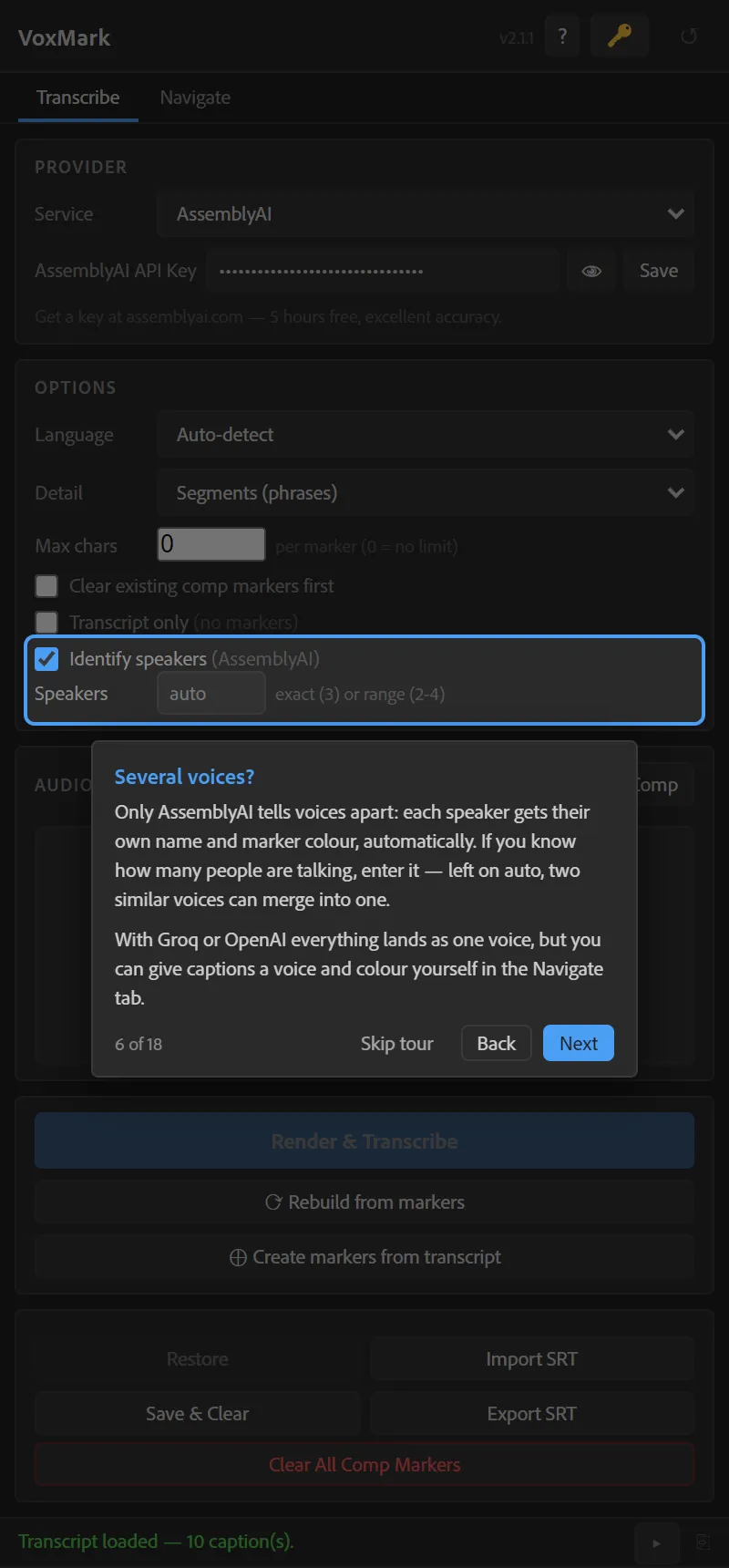
Section titled “Transcribe now, markers later”- Transcript only. Tick Transcript only (no markers) to transcribe without touching your timeline.
- Create markers from transcript adds them whenever you want — from the Transcribe tab, or the ⊕ button in the Navigate tab. Run it again and it replaces its own markers; markers you placed yourself are left alone.
- Large jobs (500+ captions) create their markers in batches with visible progress.
Edit captions directly
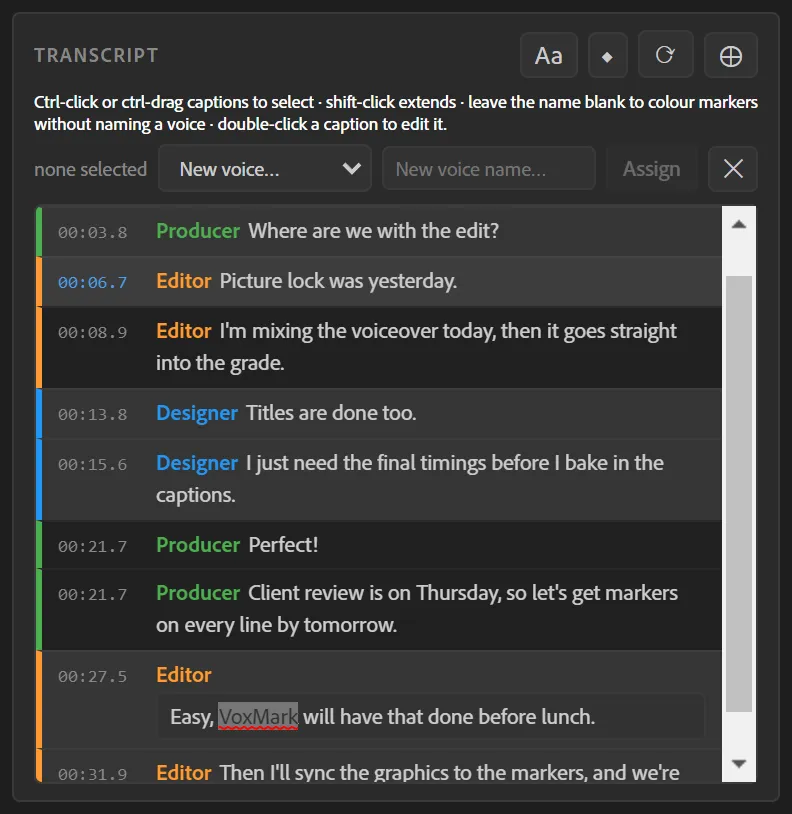
Section titled “Edit captions directly”Double-click any caption in the Navigate tab to fix a word. Press Enter to keep it — the saved transcript and the marker on your timeline both update. See The Navigate tab.
More accurate timing
Section titled “More accurate timing”Whisper tends to start captions early around pauses — sometimes by half a second, a dozen frames at 24 fps. VoxMark now corrects each caption against the word timings and, where those are wrong too, against the audio itself, so markers land on the words.
Providers
Section titled “Providers”- Choose your Groq model: Whisper Large v3 Turbo (the default — faster, more accurate timing) or Whisper Large v3 (slightly better word for word).
- Groq’s paid developer tier now gets its full 100 MB — roughly 50 minutes of audio.
- A provider that refuses a file as too large now says so, with the real limits.
- SRT export and Convert to Captions land at the right time when your audio doesn’t start at the beginning of the timeline.
- Premiere: hiding marker text no longer empties the Navigate tab when you switch sequences or reopen the panel.
- After Effects 2026: Set work area to caption puts the work area on the caption, not at the start of the comp. In Premiere the same button is Set In/Out to caption.
- Switching between projects always loads the right transcript.
Help, inside the panel
Section titled “Help, inside the panel”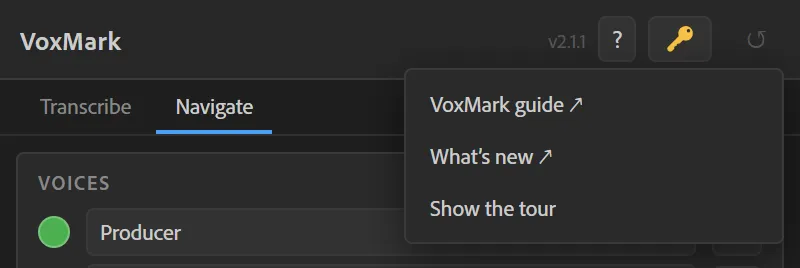
The new ? button in the panel header opens this guide and replays the tour. The tour starts on its own the first time you open VoxMark: it begins at Scan — solo your voiceover first — walks the Transcribe settings, lets you try the Navigate tab on a sample transcript — with real markers, in a temporary “VoxMark Tour” comp that is removed when the tour ends — editing a caption included, and finishes with export and import.